Instagram Bank
Create Instagram posts mid-edit, in Lightroom.
Mac · Lightroom Classic · works with free Notion
- 01
Spot it mid-edit
A moment with a story behind it, while the wedding is fresh.
- 02
Write the post in Lightroom
Caption, story, couple and labels, without leaving your edit.
- 03
Saved to your bank
Instagram-ready in Notion, waiting for when you need it.
01Why I built it
The best stories were getting lost in the edit.
I pride myself on being a candid photographer. Watching, reading the room, understanding the social dynamics of a wedding, and catching the tiny moments in between. Not the hero shots or the confetti, but the little photographs with a real story behind them, the kind that only make sense to me and maybe the couple.
I'd find one of those mid-edit and think, that would be amazing to share. Then weeks go by. The gallery goes out, the couple love it, I post the ceremony, the first kiss, the portraits up a mountain. And that moment is gone. I can still remember the story when I see the photo, but finding it again means scrolling back through a thousand images across old galleries, trying to remember which wedding it was even in. So the stories never got told.
We're most aware of our best content at the wedding and in the edit. Every day after the gallery goes out, a bit of that memory fades, and so does the urge to share it. So I wanted to catch it right there, while I'm deep in the wedding: grab the photo, write the story, and keep the two together somewhere I can come back to.

A hand on the knee
During the speeches the groom started to well up talking about his family. Without a word, his new wife reached over and gently squeezed his knee, just under his kilt. I watched him visibly steady himself, and carry on. One small touch was all it took.
02What it does
Content you collect as you edit.
An ever-growing bank of ready-to-post stories, so you can share pieces of a wedding instead of just the highlights.
Save it without leaving Lightroom
Select a photo, or several for a carousel, and choose Save to Instagram Bank. Add a title, the couple, the caption and the story. One click, and you're back to editing.
The story stays with the photo
Caption, couple, location, date and a private note to yourself, all tied to the image. No more trying to remember which wedding that moment was in.
Instagram-ready, every time
Each photo is exported at 1440 px wide, Instagram's largest, at full quality and kept under 5MB, portrait or landscape. Download it straight from Notion and post. No hunting for the file.
Your own labels
There are no labels to start with; you make your own. Candids, Suppliers, Advice, Venue. Each new one becomes a tick box next time.
A bank you can actually browse
Everything lands in a big, visual Notion gallery that matches The Co Lab. Filter by label or date, and mark a post as Posted when it's gone out.
Share it with your VA
It's an online Notion page, so anyone you share it with sees the same bank. They have the photo and the story, with nothing to go and find.
03See it in action
From the edit to your bank.

What you'll look for in Notion, e.g. "Peacock on the lawn".
DD/MM/YYYY (from when the photo was taken)
412 / 2200 characters · 3 / 30 hashtags
separate with commas
Exported for Instagram: 1440 px wide, full quality, always under 5 MB for Notion's free plan.

1 · In Lightroom
Select the photo, then choose Library → Plug-in Extras → Save to Instagram Bank. This window opens with your photo at the top.
- Title, what you'll look for later
- Couple and Location, remembered so you can pick them again
- Date, filled in from when the photo was taken
- Caption and Hashtags, with Instagram's character and hashtag counts
- Notes, a private reminder just for you
- Labels, your own, as tick boxes
Select several photos and you can save them as one carousel. Click Save to Notion and you're back to editing.
2 · In your Notion bank
Every save lands in your own Notion page as a big, visual card: the photo, the title, the couple and date, your labels, and whether it's been posted yet. Open a card for the full caption and the Instagram-ready file. Filter by label when you want something specific, and mark it Posted when it's gone out.

Instagram Bank
Ready-to-post moments, saved straight from Lightroom.
A hand on the knee
Isla & Jamie · 14 Jun 2025
Shades on before the vows
Rosie & Sam · 2 Aug 2025
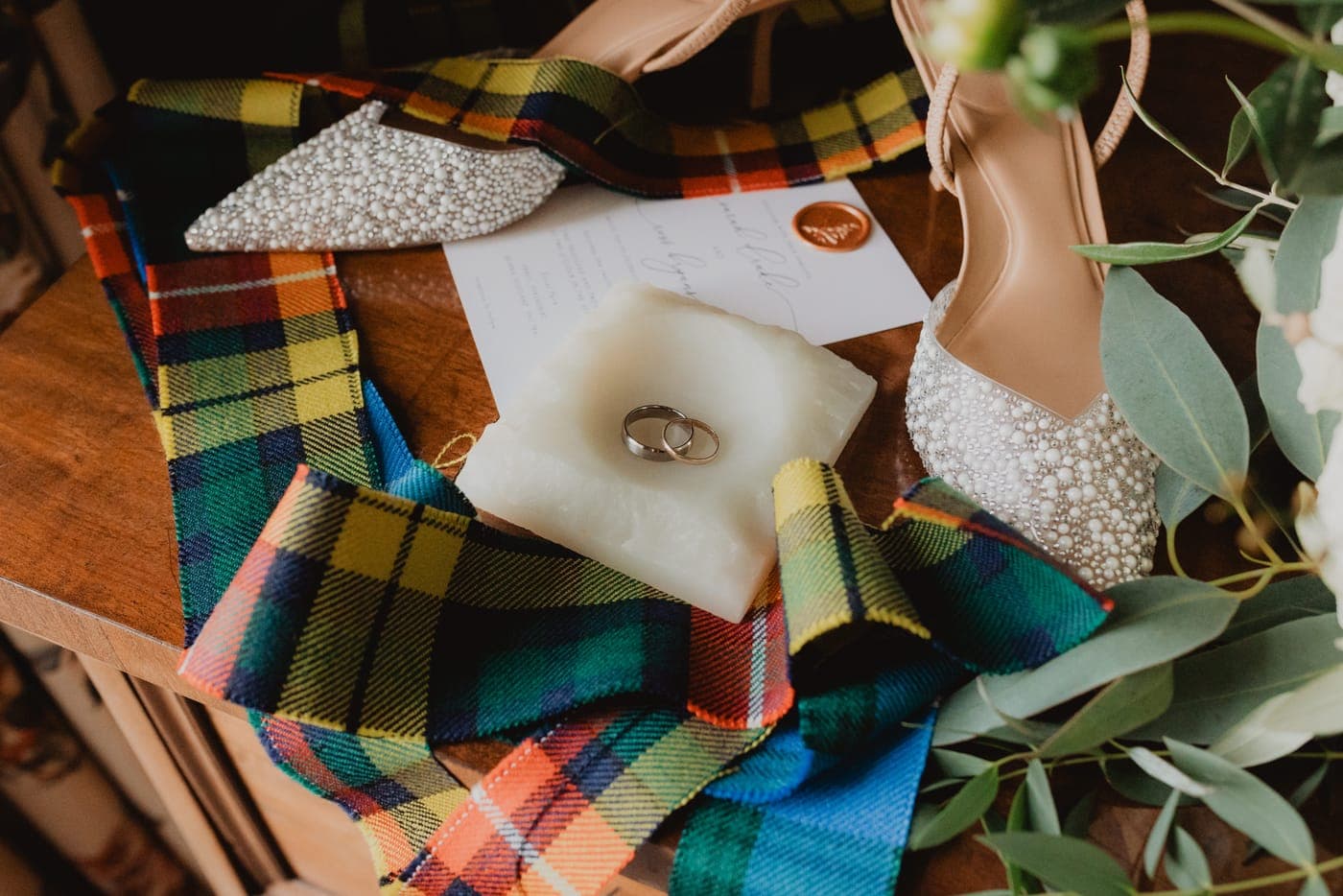
▣ 4Grandad's tartan
Rosie & Sam · 2 Aug 2025
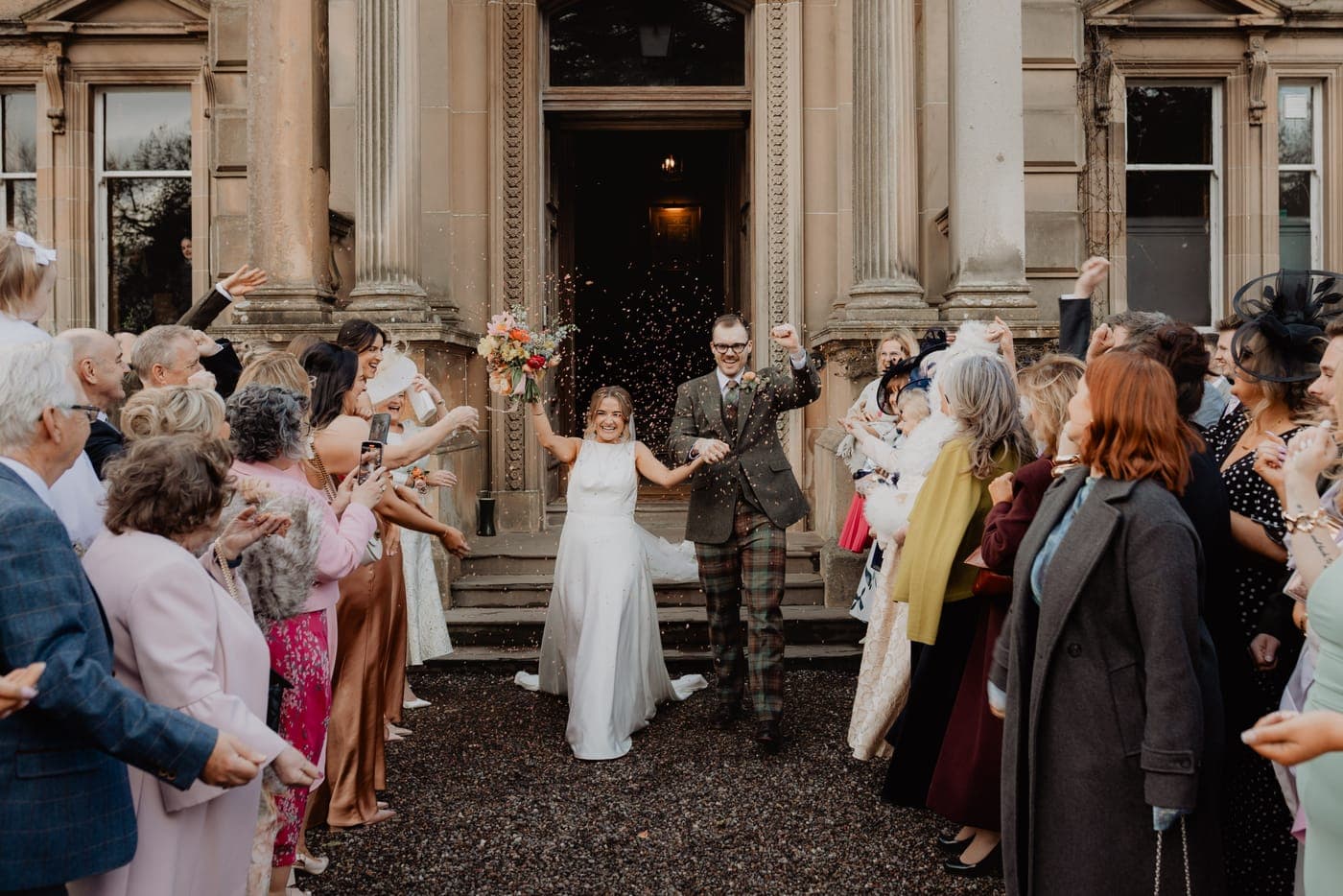
The aunties' confetti
Anna & Euan · 17 May 2025
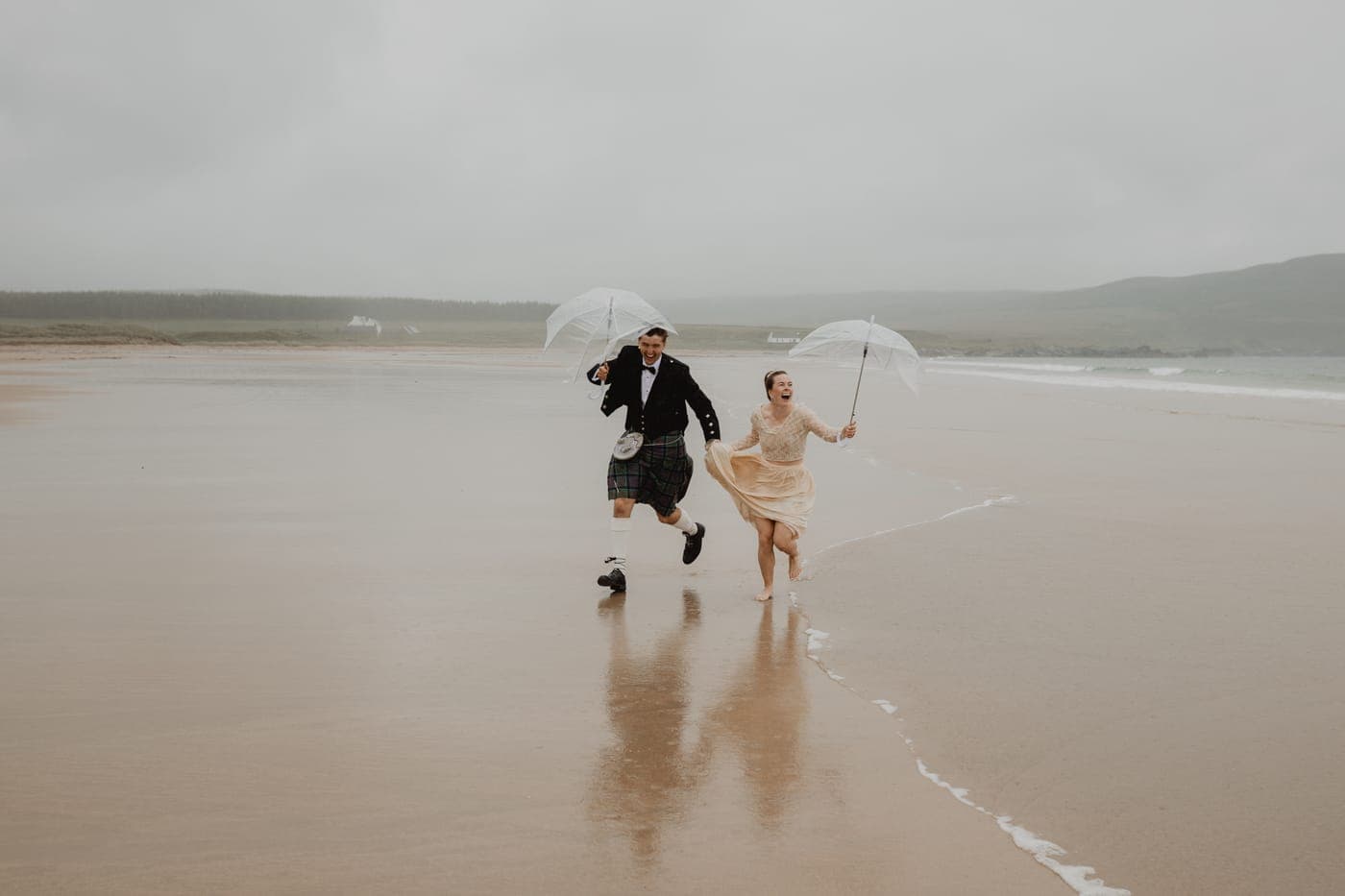
Running from the rain
Mhairi & Tom · 9 Sept 2025
▣ 6Why I love this venue
Venue guide · 21 Jun 2025
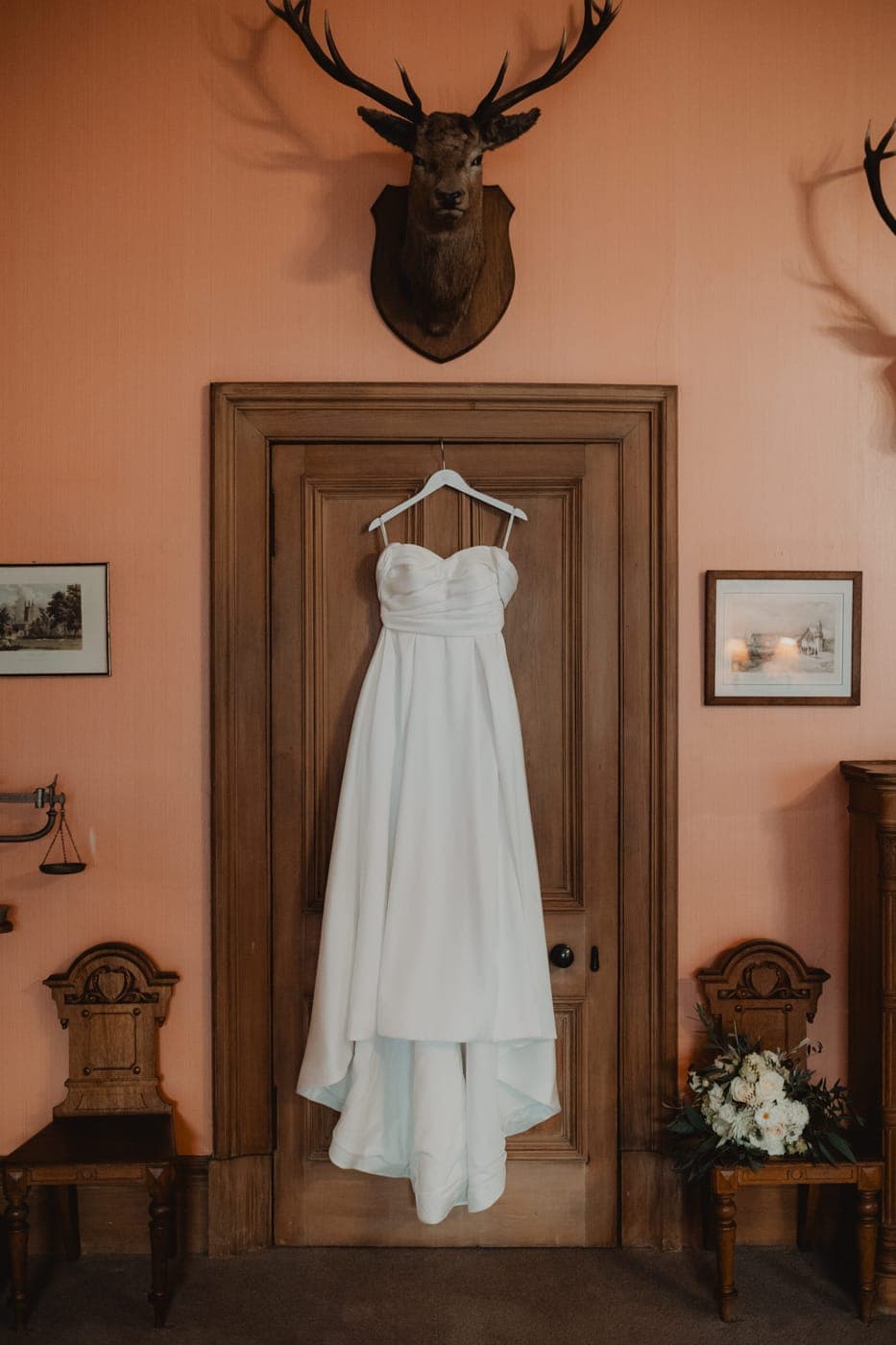
The dress and the stag
Rosie & Sam · 2 Aug 2025

Wet feet, no regrets
Mhairi & Tom · 9 Sept 2025
Mock-ups of the plug-in and the Notion template, with names changed.
04Who it's for
Anyone with more stories than posts.
The candid storyteller
You photograph the tiny moments between the big ones, and want to tell their stories rather than post another set of portraits.
The solo photographer
You run your own Instagram. Loved the cake? Grab three angles of it mid-edit and the supplier shout-out is ready to go.
The photographer with a VA
Hand over a bank of finished posts instead of asking someone to dig through galleries months after the wedding.
05How it works
Ten minutes to set up, one click after that.
- 01
Install the plug-in
Add it in Lightroom's Plug-in Manager. The step-by-step guide shows you every click, even if you've never installed a plug-in before.
- 02
Connect your Notion
Copy the ready-made Notion template, paste one secret and one link into Lightroom, and click Connect. Never used Notion? The guide covers that too.
- 03
Save while you edit
When you find the moment, select it, run the plug-in, write the story and hit Save to Notion. It takes about as long as writing a text.
- 04
Post from your bank
On the weeks you've nothing to share, open your bank, pick a story, download the photo and copy the caption. Away you go.
What you'll need
- · Adobe Lightroom Classic, on a Mac
- · A Notion account. The free plan is all you need.
- · About ten minutes, once, to follow the setup guide
06Questions
Good to know.
- What do I need to use it?
- Lightroom Classic on a Mac, and a Notion account. Notion is free, and Instagram Bank is built to work on the free plan, so you should never need to pay for a Notion subscription.
- Does it work on a PC, or with Lightroom (the cloud version)?
- Not yet. It's built and tested for Lightroom Classic on a Mac. A PC version may come later.
- What does it cost?
- It's free while it's in beta. After that it'll be a small annual licence, around £15 to £20 a year, with updates included.
- Does it upload my full-size files?
- No. It exports a fresh, Instagram-sized copy of the photo, under 5MB, and sends only that to your own Notion. Your originals and your catalogue are untouched.
- Who can see my bank?
- Only you, and whoever you choose to share the Notion page with. Your photos go from Lightroom straight to your own Notion. The Co Lab never sees them.
- What does beta mean?
- It works, and I use it on my own weddings, but it's still being tested and polished. Beta testers get it free and help shape what it becomes.
Stop losing the stories you meant to tell.
I'm opening it up to a small group of photographers on Lightroom Classic for Mac. Drop me a line and I'll send you the plug-in, the Notion template and the step-by-step setup guide.